Installing Perl Scripting Language
BACK
Now go to the Abyss Web Server Console and add a new scripting interpreter
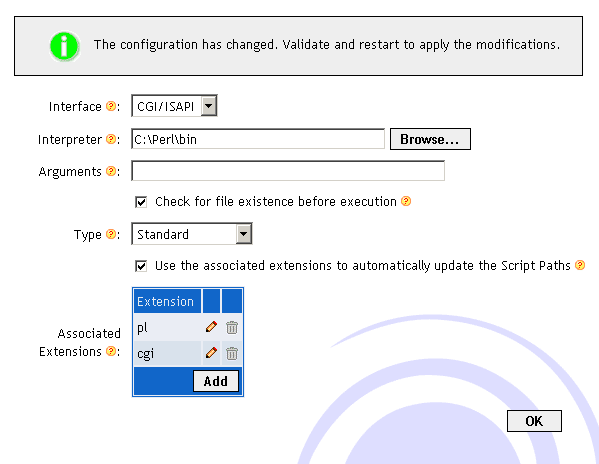
Add the interpreter "C:\perl\bin\perl.exe" and the file extensions ".pl" and ".cgi".
Click OK and restart Abyss.
Thats it. Perl is now installed.
Tips on getting online
Change the Index File
Installing Abyss Web Server
Installing Selisoft Active HTML
Installing Filezilla FTP Server
Installing hMailServer Mail Server
Installing MySQL Database Server v4.1
Installing PHP
Installing ActiveState Python
Installing ActiveState Ruby on Rails
Set a static LAN IP
Or go back to the AbyssUnderground homepage
Step 1: Downloading
Before we start you need to download the Perl scripting language. You can get it from
http://downloads.activestate.com/ActivePerl/Windows/5.8/ActivePerl-5.8.8.817-MSWin32-x86-257965.msi
http://downloads.activestate.com/ActivePerl/Windows/5.8/ActivePerl-5.8.8.817-MSWin32-x86-257965.msi
Step 2: Installing
Start the installation file and follow the steps through until it installs leaving all options at their defaults.Now go to the Abyss Web Server Console and add a new scripting interpreter
Add the interpreter "C:\perl\bin\perl.exe" and the file extensions ".pl" and ".cgi".
Click OK and restart Abyss.
Thats it. Perl is now installed.
Extras
For ease of use, you might want to add index.pl to your Index Files configuration. How?Finished
Related Pages
Tips on getting online
Change the Index File
Installing Abyss Web Server
Installing Selisoft Active HTML
Installing Filezilla FTP Server
Installing hMailServer Mail Server
Installing MySQL Database Server v4.1
Installing PHP
Installing ActiveState Python
Installing ActiveState Ruby on Rails
Set a static LAN IP
Or go back to the AbyssUnderground homepage